Microsoft 365 security assessment: a checklist for Singapore SMEs

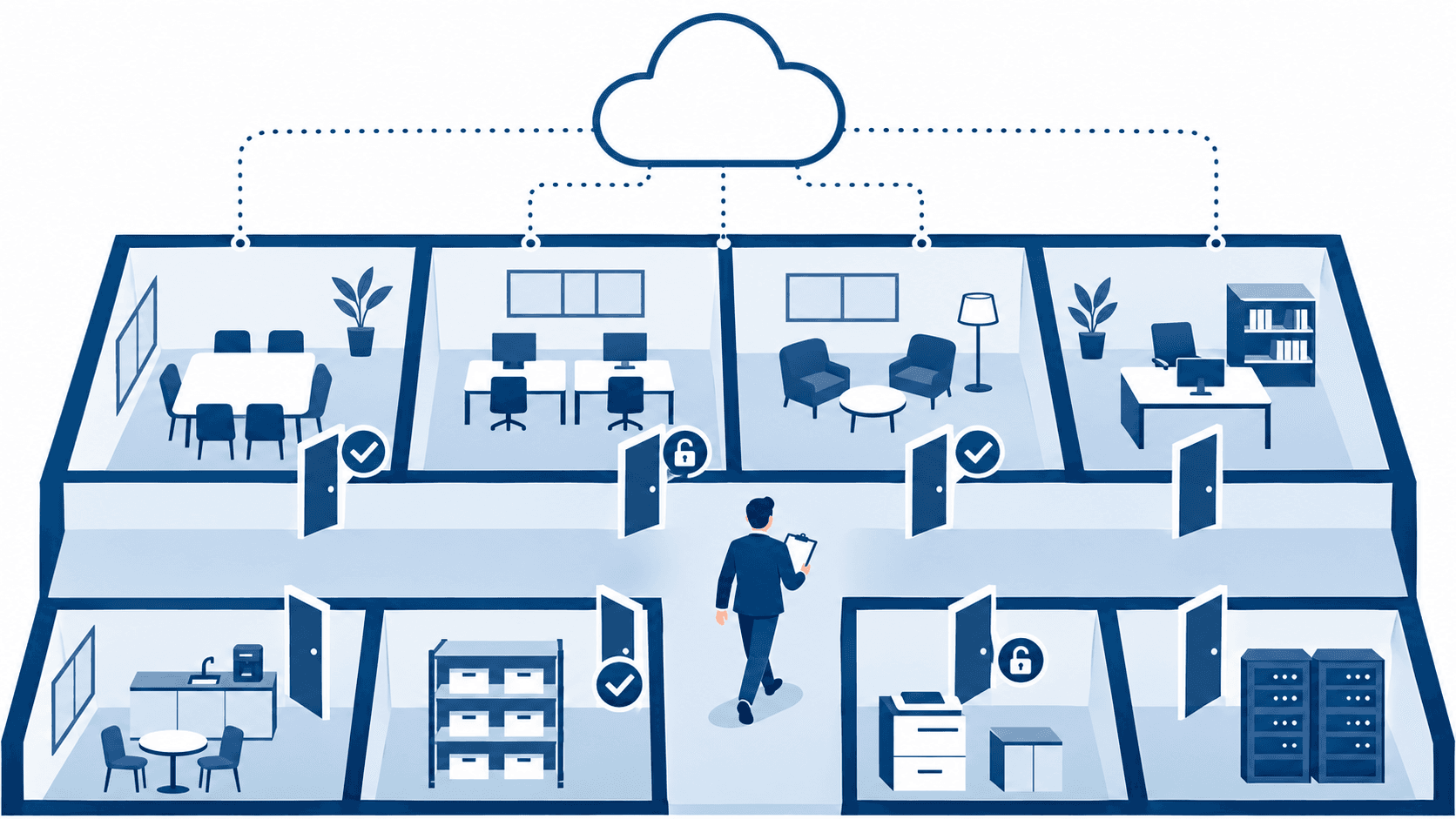
A Microsoft 365 security assessment is a configuration review of how your company's Microsoft 365 is set up, across eight areas: sign-in and MFA, admin accounts, email protection, external sharing, devices, backup, Secure Score and the audit log.
Microsoft's documentation says the audit log, the record of who did what across email, files and settings, is not switched on by default for its small and medium business plans, so in a setup nobody has reviewed, that record may not exist when you need it. Below: what a review checks, a self-check for each area, and how it all lines up with CSA's Cyber Essentials mark and the PDPA.
This is general information, not legal advice.
What a Microsoft 365 security assessment is
You will also see it called an M365 security review or an Office 365 security audit. Office 365 is the older name. Someone with admin access compares your tenant's settings (your company's own space in Microsoft's cloud) with Microsoft's recommendations and a checklist, and lists the gaps in order.
Think of the defects inspection when you collect the keys to a new flat: someone walks every room with a checklist and notes what was left unfinished. A Microsoft 365 review is that walk-through for the settings someone chose, or never chose, when your Microsoft 365 was first set up.
This review checks settings only, and the result is a dated record and a fix list. It does not test whether someone can break in or watch your systems from day to day, and it is not a certificate.
The Microsoft 365 security checklist: eight areas
1. Sign-in and MFA (Microsoft Entra ID)
Microsoft Entra ID is the sign-in system behind Microsoft 365. MFA adds a second step after the password, usually a tap in a phone app. Security defaults are free on every plan and, according to Microsoft, require MFA registration for everyone and MFA for admins, and block older sign-in methods. Conditional access lets you set your own rules, such as "only company laptops can open company files", and needs Entra ID P1, which comes with Business Premium. You use one or the other, and the gap a reviewer looks for is a tenant with neither.
Self-check: ask your provider how many user accounts can sign in with a password alone. The answer you want is zero.
2. Admin accounts
A Global Administrator can change almost every setting, so this role is the master key. Microsoft's guidance is to give it to fewer than five people, keep two emergency "break glass" admin accounts that belong to no individual, and have admins use a separate account for admin work. Whoever first signed the company up became a Global Administrator by default, so an owner can hold the role unknowingly.
Self-check: ask for the names of everyone with the Global Administrator role. Count them, and check you recognise every name.
3. Email protection, and SPF, DKIM and DMARC
Every Microsoft 365 mailbox gets Microsoft's built-in email protection (formerly Exchange Online Protection), which filters spam and malware. Business Premium adds Defender for Office 365 Plan 1 for link and attachment checks. Microsoft's "Standard" and "Strict" preset policies apply its recommended email settings in one step; its documentation says both are likely to be off at first.
The other half is your domain's DNS records (the settings that tell the internet where your email goes), which need no licence. SPF lists the servers allowed to send as you, DKIM signs each message, and DMARC tells other mail systems what to do with email that fails those checks. A DMARC policy of "none" only reports; "quarantine" or "reject" acts. Our plain-English guide has the detail.
Self-check: type your domain into any free online DMARC lookup. A missing record, or a "none" policy that has sat there for months, goes on the list.
4. External sharing in SharePoint, OneDrive and Teams
External sharing is turned on by default for SharePoint and OneDrive across the whole organisation. At the most open level, "Anyone" links open a file without signing in, and Microsoft notes you cannot track who has access through them. Teams files live in SharePoint, so the same settings apply.
A reviewer checks the sharing level, whether "Anyone" links expire, how many guests have access, and whether finance and HR sites are set tighter. Sharing with clients is often the point; what matters is that someone chose the level on purpose.
Self-check: open any file in OneDrive, click Share and look at who the link can work for. If "Anyone" is an option, ask whether that was a decision.
5. Devices (Microsoft Intune)
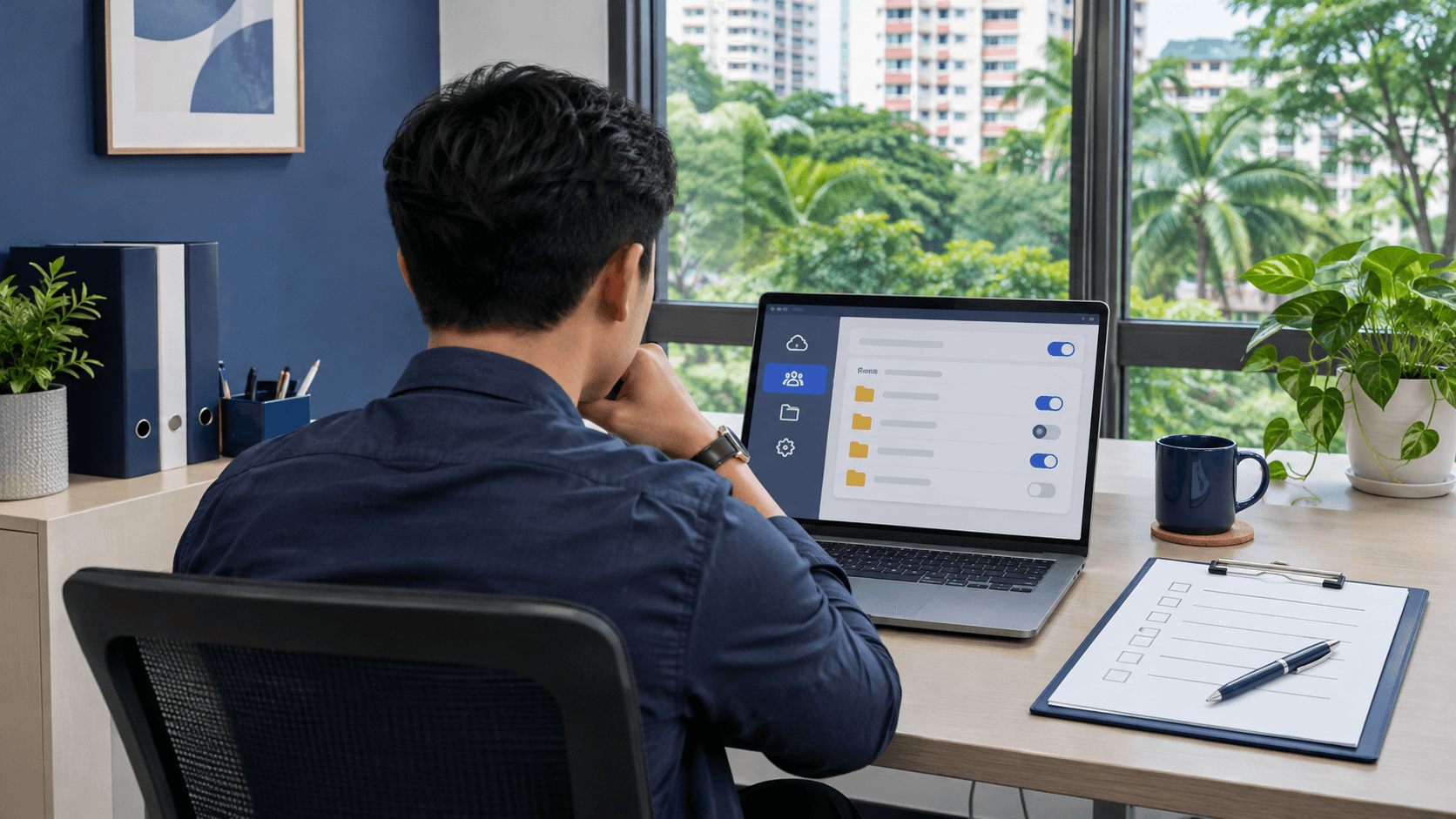
Business Basic and Standard include Basic Mobility and Security, a subset of Microsoft Intune that can set basic phone policies and remove company data from enrolled phones while leaving personal data alone. Intune Plan 1, which comes with Business Premium according to Microsoft's Singapore plan pages, adds full management of laptops and phones, such as encryption and updates.
Ask: if a staff member's phone were lost tonight, is it enrolled so that we can remove company data from it, and who would do it?
6. Backup of Microsoft 365 data
Under Microsoft's shared-responsibility model (Microsoft runs the service; you own your data and settings), keeping your data recoverable is your job. Deleted SharePoint files sit in the site recycle bin for up to 93 days (Microsoft Support). After the recycle bins, they are usually gone unless a retention policy (a rule that keeps copies for a set time) or a separate backup holds a copy.
A reviewer checks what backs up mailboxes, OneDrive, SharePoint and Teams, where the copies are kept, and when a restore was last tested. Our managed backup service covers Microsoft 365 and keeps the copies outside your tenant.
Ask: if someone deleted a SharePoint folder four months ago and we noticed today, how would we get it back?
7. Microsoft Secure Score: a starting point, with limits
Secure Score, in the Microsoft Defender portal, shows how many of Microsoft's recommended security actions you have taken. Microsoft says the score "isn't an absolute measurement of how likely your system or data could be breached", and that its recommendations "don't cover all the attack surfaces". Items can also be marked as handled by another product, which raises the score, so a reviewer checks that they really are.
Ask: what is our Secure Score, which five highest-value actions are not done yet, and why?
8. Is the audit log switched on?
Microsoft Purview's audit log records activity across Microsoft 365: which files were opened, shared or deleted, which mailbox rules were created, which settings an admin changed. All three business plans include the Standard version, which keeps the audit log for 180 days. But Microsoft's documentation states that auditing isn't enabled by default for these small and medium business plans, and the audit log only records from the moment it is switched on. Sign-in history is kept separately in Microsoft Entra, for seven days on Basic and Standard and 30 days on Premium.
After a suspected email account takeover, these logs are how you find out what the intruder read, sent and changed.
Self-check: ask someone with admin rights to open the audit log page in the Purview portal. If a banner offers to start recording user and admin activity, the audit log is off.
Which checks need which licence
Most checks work on any business plan. Business Premium adds conditional access, Intune Plan 1, Defender for Business, which protects company laptops, Defender for Office 365 Plan 1 and longer sign-in history. A backup is bought separately. Licence prices change, so take current figures from your reseller's written quote.
How the checks line up with Cyber Essentials and the PDPA
CSA's 2025 standard for the Cyber Essentials mark puts cloud software such as Microsoft 365 in scope, and several clauses, some of them cloud-specific, match the checks above: admin MFA, separate admin accounts and dormant accounts removed (checks 1 and 2), the provider's secure settings and audit logs (Secure Score and check 8), cloud data backed up and stored separately (check 6), and a device inventory that the standard recommends should include company phones (check 5).
For the PDPA, section 24 requires "reasonable security arrangements" to protect the personal data you hold. The PDPC's Guide to Data Protection Practices for ICT Systems, revised on 20 July 2026, uses the same five headings as Cyber Essentials: assets, secure/protect, update, backup and respond. Our PDPA guide covers the other basics, such as consent and retention.
This is general information, not legal or compliance advice. Working through this checklist does not make your business compliant with the PDPA or Cyber Essentials.
Send this to your IT provider
Hi, could you send me a short written review of our Microsoft 365 security settings, one line per item, with a screenshot where possible: (1) whether security defaults or conditional access enforce MFA, and how many accounts can sign in without it; (2) everyone with the Global Administrator role; (3) whether the Standard or Strict preset email policies are applied, and our DMARC policy level; (4) our SharePoint and OneDrive external sharing level, whether "Anyone" links are allowed, and how many guests have access; (5) how many devices are managed in Intune, if we have it; (6) what backs up our Microsoft 365 data, where the copies are kept, and the date of the last test restore; (7) our Secure Score and the five highest-value actions not yet done; and (8) whether audit logging is on in Microsoft Purview, and since when. Please mark each item done, partly done or not done, and list the gaps in the order you would fix them.
Frequently asked questions
Is a Microsoft 365 security assessment the same as our Secure Score?
No. Secure Score is one input. A review also covers what the score does not show, such as whether someone who left still holds admin rights, and whether anyone has tested a restore.
Can our office manager do these checks?
The self-checks, yes. Changing settings is where mistakes happen: a conditional access rule set wrongly can lock the whole office out. Leave changes to someone who makes them regularly, such as a managed service desk.
Doesn't Microsoft check our settings for us?
Partly: Microsoft publishes Secure Score, turns security defaults on for new tenants and requires MFA on its admin portals. Under its shared-responsibility model, your accounts, data and access settings are still yours to configure.
How often should Microsoft 365 be reviewed?
CSA's Cyber Essentials standard suggests reviewing accounts at least quarterly as good practice. Our rule of thumb for a fuller review is once a year, and before any big change such as a new provider or turning on Microsoft 365 Copilot.
Our approach
Evernet Systems runs managed IT built for AI adoption for Singapore SMEs. Getting Microsoft 365's sign-in, sharing and permissions right reduces the risk that AI tools such as Copilot surface data people should not see. We charge a monthly fee for managed IT, so we gain when an owner decides their Microsoft 365 needs looking after.
A small team on Business Basic with no company laptops, MFA on for everyone, a DMARC record, a backup and the audit log switched on has the basics in place: run the self-checks once a year and spend the budget elsewhere. If your current provider already reports on all eight areas in writing, you have little reason to move.
Book a 30-minute call to go through your provider's answers to the eight checks. If the answer is "not yet", or your current provider already has this covered, we will tell you.

Steven Shi · Founder & Technical Director
Steven is the founder and Technical Director of Evernet Systems, a Singapore-headquartered managed services provider serving 70+ SMEs. He leads Evernet's move from traditional MSP to AI adoption partner. The company tested AI on its own operations first: about 40% automated by 2026. It now helps clients adopt AI the same way. He writes about practical AI adoption, IT infrastructure and PDPA compliance for growing businesses.
Need help with this?
We help Singapore SMEs put these ideas into practice. Book a 30-minute discovery call.
Book a discovery callBook a 30-minute discovery callRelated articles
How often should you replace your company laptops?
Replace daily-use laptops every three to four years and refresh a quarter of the fleet each year. One Singapore reseller's November 2026 listing for a mainstream business laptop runs from about S$1,960 to S$2,460 including GST, roughly S$40 to S$70 per user per month over three to four years. Windows 10 end of support arrived on 14 October 2025, so anything that cannot run Windows 11 is due now.
Read Managed ITHow much should your Singapore SME budget for IT in 2027?
A line-item 2027 IT budget for a 30-person Singapore firm with S$3M revenue comes to about S$5,800 to 13,000 a month in our worked example, roughly 2.3% to 5.2% of revenue, with the support line taken at the Singapore average that one 2026 vendor round-up cites. We price the line items owners forget, work through the example, say what to cut and what never to cut, and size the AI line honestly.
Read